Understanding Monitor Specs: Resolution, Refresh Rate, and Color Accuracy
Learn how resolution, refresh rate, and color accuracy shape clarity, motion smoothness, and fidelity when choosing a monitor for work, gaming, or creation.
Why Monitor Specs Matter
Choosing a monitor isn't just about size; it's about balancing resolution, refresh rate, and color accuracy to match your tasks and expectations. These specifications work together: higher pixel counts sharpen details, faster refresh rates make motion smoother, and precise color reproduction ensures images look as intended. A designer, competitive gamer, and general office worker value different aspects, yet all benefit from understanding the trade‑offs. For instance, pushing high frame rates at ultra‑high resolutions demands a powerful graphics pipeline, while prioritizing color fidelity might favor certain panel types and calibration routines. Even everyday activities like scrolling documents or video calls feel better with appropriate motion handling and ergonomics. Consider viewing distance, desk depth, and ambient light, as pixel density, glare control, and brightness affect comfort. Think of specs as a triangle: clarity, fluidity, and accuracy. You rarely maximize all three simultaneously without compromise, so define your primary use, set a realistic budget, and choose a display that aligns with how you actually work and play.
Resolution and Pixel Density
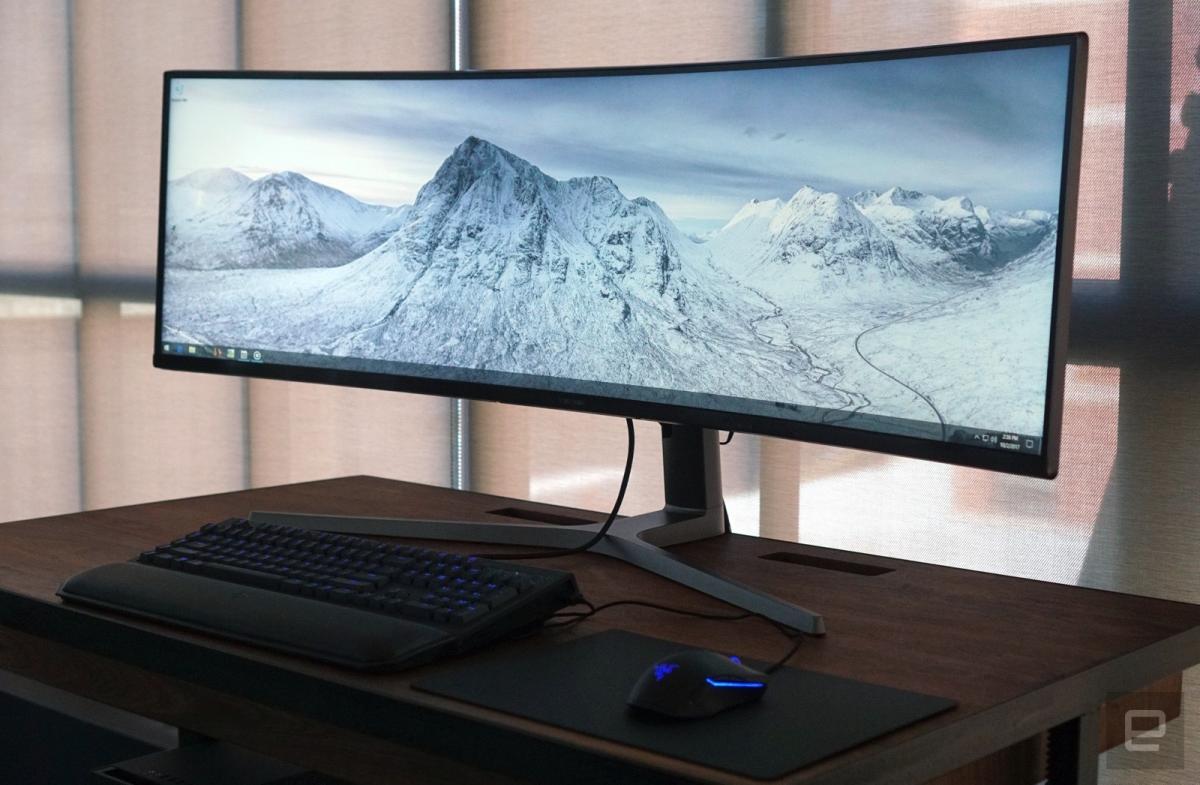
Resolution describes how many pixels a screen displays, while pixel density (often expressed as PPI) tells you how tightly those pixels are packed. More pixels increase detail, enlarge your workspace, and sharpen small text, but also demand more from your graphics processor and may require thoughtful scaling to keep interface elements readable. Pair screen size with resolution to achieve balanced clarity; a compact display at high resolution can look razor‑sharp yet may force scaling, while a large panel at modest resolution might appear soft up close. Assess your viewing distance: the farther you sit, the less extreme pixel density you need. Consider aspect ratio for your workflow—wider formats improve timelines and side‑by‑side multitasking, while standard formats suit general use. Content creators benefit from precise pixel mapping and room for tool palettes. If you often work with photos, spreadsheets, or code, prioritize a resolution that provides both fine detail and comfortable reading without overtaxing your system.
Refresh Rate and Motion Clarity
Refresh rate (measured in Hz) indicates how many times the display updates each second, impacting motion clarity, input responsiveness, and overall fluidity. A higher refresh rate reduces perceived blur when scrolling, tracking fast gameplay, or moving windows. Pair refresh rate with your system's frame rate output for the best effect; if frames vary, adaptive sync technologies help align the display's refresh with the source, reducing tearing and stutter. Don't confuse refresh rate with response time—the latter reflects how quickly pixels transition between shades. Lower response times can cut ghosting, but excessive overdrive might cause overshoot artifacts. Some displays offer strobing modes that enhance clarity by shortening motion persistence, albeit with trade‑offs in brightness or artifacts. Keep an eye on input lag, especially for gaming and interactive tasks. For productivity, smoother scrolling is easier on the eyes, while for fast‑paced content, higher refresh rates and tuned response settings deliver a more immediate, precise experience.
Color Accuracy and Panel Technology
Color accuracy determines whether what you see is faithful to the source. Look for wide color gamut coverage (such as sRGB, DCI‑P3, or Adobe RGB), but remember that coverage and gamut volume are distinct from calibrated accuracy. Metrics like Delta E indicate how close displayed colors are to reference values; lower numbers generally signify better accuracy. Panel types matter: IPS often offers consistent viewing angles and stable color, VA tends to provide stronger contrast, and emissive technologies can achieve deep blacks while demanding careful handling of uniformity and subpixel structure. Consider bit depth (8‑bit vs 10‑bit, with FRC dithering in some cases) for smoother gradients and fewer banding artifacts. Proper calibration and profiling with a colorimeter, plus a consistent white point, gamma, and ambient light environment, are essential for reliable results. If you work with HDR content, evaluate peak brightness, local dimming capability, and tone‑mapping behavior alongside your color requirements.
Practical Buying and Setup Tips
Start by ranking your priorities: if you game, weigh refresh rate, response time, and input lag; for creative work, emphasize gamut, uniformity, and calibration potential; for office tasks, focus on pixel density, ergonomics, and eye comfort. Check port options and bandwidth to ensure your preferred resolution and refresh rate are supported. Seek sturdy ergonomic stands with height, tilt, and swivel, and consider VESA mounting for flexible setups. After unboxing, set reasonable brightness, pick an appropriate color mode, and fine‑tune gamma and white point. Run a calibration routine and apply the ICC profile to lock in consistency across apps. Test patterns can help adjust overdrive to minimize ghosting without overshoot. Keep firmware and drivers updated, enable adaptive sync if available, and manage power settings to reduce heat and extend lifespan. Revisit your settings periodically—small tweaks to scaling, sharpness, and color can keep performance aligned with your evolving workflows.