The Ultimate Beginner's Guide to Building a Custom PC
Learn how to build a custom PC from scratch: choose parts, set a budget, assemble safely, install Windows, and fix common issues with confidence.
Plan Before You Buy
Before you pick up a screwdriver, clarify your goals: are you building for smooth gaming, quiet productivity, creative workloads, or an all‑purpose machine? Define a realistic budget and prioritize performance per dollar where it matters most. Decide on a form factor—ATX, microATX, or Mini‑ITX—based on desk space, expansion needs, and desired airflow. Sketch a parts list early and verify compatibility among the CPU, motherboard socket, RAM, and case clearance for coolers and graphics cards. Plan for future upgrades by reserving extra M.2 slots, DIMM slots, and power headroom. Prepare your workspace with good lighting, a magnetic Phillips screwdriver, zip ties, and optional anti‑static protection. Consider storage strategy: a fast NVMe SSD for the system and a secondary drive for libraries or projects. Think about acoustics, dust filters, and cable routing paths that keep the build tidy and cool. Finally, line up your operating system installer, back up existing data you may migrate, and set expectations for a calm, methodical build session.
Pick the Right Components
Select a CPU that matches your workloads: high clocks and strong single‑thread for gaming, plentiful cores for creation and multitasking. Pair it with a GPU sized to your target resolution and visual settings; prioritize VRAM and cooling quality for consistent frames. Choose a motherboard with the correct socket and features you'll actually use—robust VRM for stability, adequate USB ports, multiple M.2 slots, and convenient diagnostics. For RAM, balance capacity and speed; enablement via XMP/EXPO later will unlock rated frequencies. Use a fast NVMe SSD for the operating system and apps, and add SATA SSDs or HDDs for bulk storage. Size your PSU with comfortable headroom, favor reputable units with 80 Plus efficiency and the necessary PCIe and EPS cables. Pick a case that fits your parts, supports the radiators or tower coolers you want, and enables unobstructed airflow. Decide between air cooling and liquid cooling based on noise, size, and maintenance preferences. Measure clearances twice—GPU length, cooler height, and cable space—so everything fits without compromise.
Assemble with Confidence
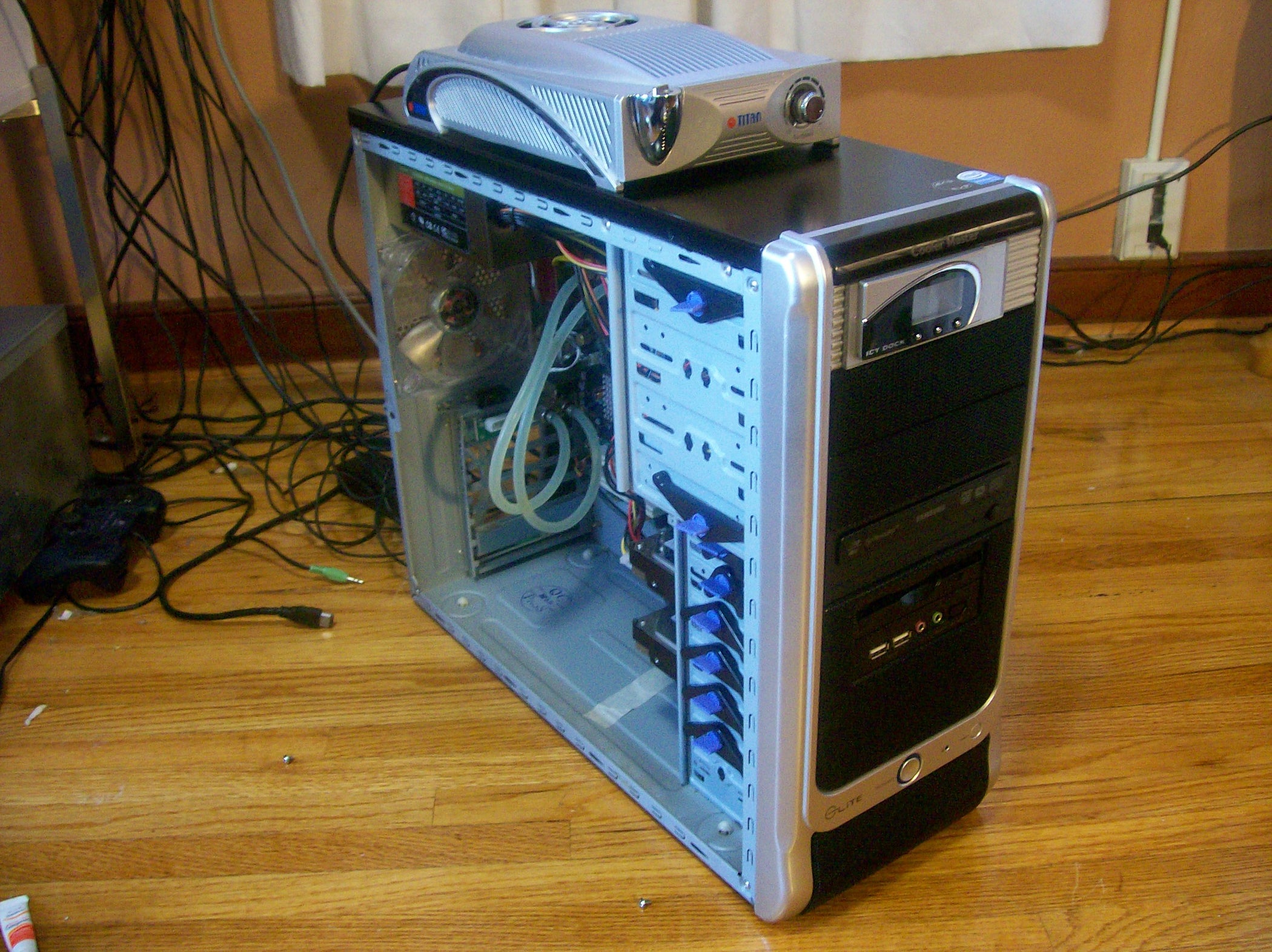
Start by preparing the case: remove panels, install standoffs, and plan cable paths. On the motherboard outside the case, seat the CPU properly, apply a pea‑sized dot of thermal paste, and mount the cooler with even pressure. Install RAM in the recommended slots and secure any M.2 drives with the correct standoff. Place the motherboard into the case, aligning the I/O shield and standoffs, then tighten screws in a cross pattern. Mount the PSU with the fan oriented toward a vent, route the 24‑pin and CPU EPS cables, and pre‑run PCIe leads for the future GPU. Connect case headers—power switch, reset, LEDs—and attach case fans to PWM headers or a hub. Install 2.5‑inch or 3.5‑inch drives with proper vibration isolation. Seat the GPU in the top x16 slot, click it into place, and secure it with screws before attaching PCIe power. Tidy cables with tie‑downs to maintain airflow. For first boot, connect only essentials: monitor, keyboard, and one drive, which simplifies initial verification.
Dial In BIOS and Software
On first power‑up, watch for POST and enter BIOS/UEFI. Load defaults, enable XMP/EXPO to run memory at rated speed, set the boot order, and configure fan curves for a balance of cooling and acoustics. Update firmware using the board's utility to improve stability and device support. Verify that drives are detected, temperatures look healthy at idle, and that your CPU, RAM, and GPU are recognized correctly. Install your operating system to the primary NVMe SSD, partitioning as needed for clean organization. After setup, install chipset, graphics, audio, and LAN drivers from trusted sources. Disable unnecessary startup items to keep the system lean. Run a few benchmarks and stress tests to validate performance and temperatures under load. Calibrate your display, set power plans, and configure backups so critical files are protected. Create a restore point once everything is stable, giving yourself a safety net for future tweaks or experiments.
Troubleshoot, Maintain, and Optimize
If you encounter no display or failed POST, use a systematic approach: reseat RAM and the GPU, check the 24‑pin and CPU EPS connectors, and try a single memory stick in the recommended slot. Consult debug LEDs or beep codes, and if needed, clear CMOS to reset settings. For thermals, confirm cooler mounting pressure, reapply paste sparingly, and ensure case fans establish balanced airflow. Reduce noise with refined fan curves, anti‑vibration mounts, and smart placement of intake filters. For performance dips, check background apps, verify drivers, and ensure the system is in a high‑performance power mode. Consider mild overclock or undervolt tuning where appropriate, always validating with incremental tests and temperature monitoring. Maintain your build with regular dusting using short bursts of compressed air, periodic cable tidying, and storage health checks via SMART data. Keep firmware and drivers current, document changes you make, and enjoy the flexibility of a custom PC that evolves with your needs.