Simple Upgrades That Breathe New Life Into an Old Laptop
Give your aging laptop a second wind with low-cost upgrades: SSD, more RAM, fresh battery, cleaning, and smart software tweaks to restore speed.
Switch to an SSD
Replacing a spinning HDD with a solid state SSD is the single biggest upgrade most older laptops can get. Even modest drives deliver dramatic boosts to boot time, app launches, and overall responsiveness, while using less power and generating less heat. Many laptops accept a 2.5-inch SATA SSD; some have an M.2 slot that may support SATA or NVMe. Check which interface your system supports before buying. Migration is straightforward: you can perform cloning to copy your existing system, or do a clean install for a fresh start. Use a USB-to-SATA adapter for easy data transfer if needed, and verify partition alignment to maintain speed. After installation, ensure TRIM is enabled and that the controller is set to AHCI for optimal performance. Choose a capacity that leaves headroom for growth, as SSDs maintain speed best with free space. Keep your old drive as a backup or repurpose it in an external enclosure for extra storage.
Increase the RAM
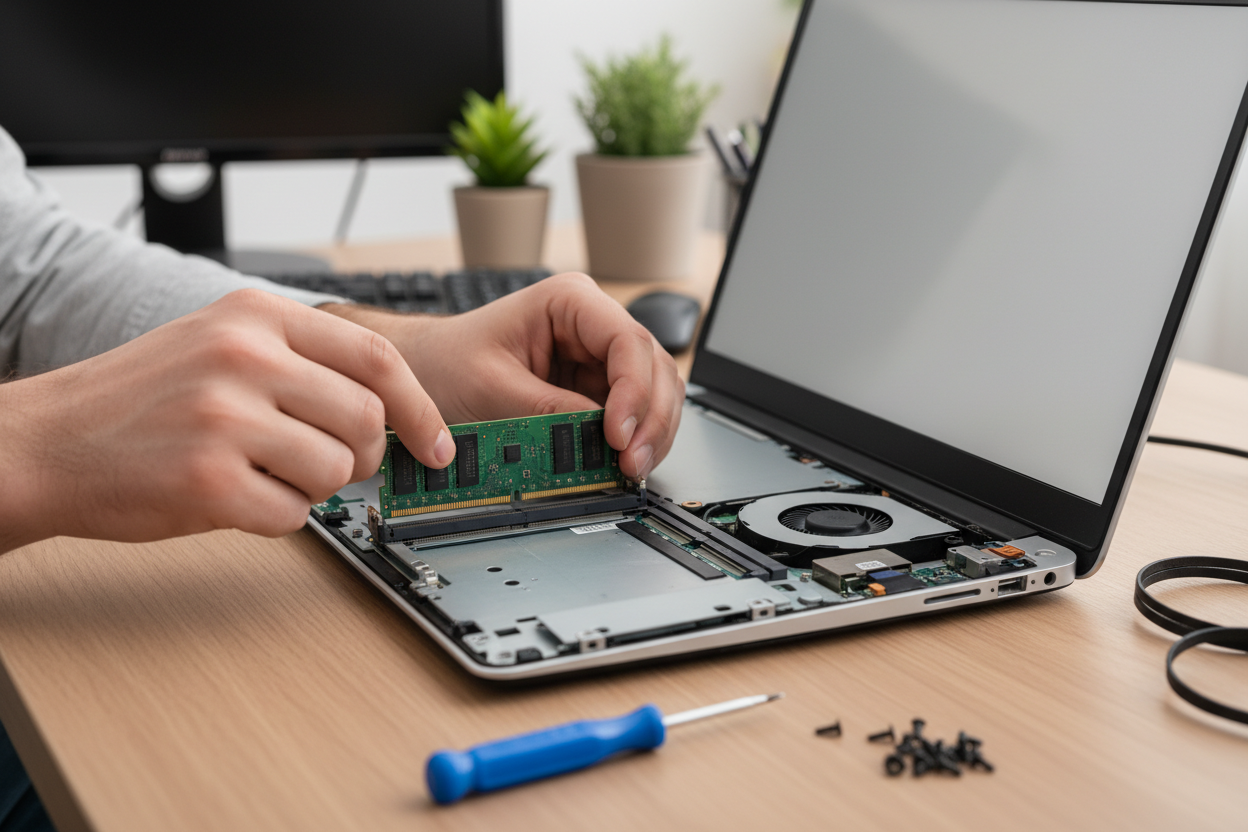
Upgrading RAM reduces slowdowns caused by disk swapping and allows smoother multitasking, especially with many browser tabs, office apps, and light creative work. Identify your memory type and form factor, typically SO-DIMM, and confirm the maximum supported capacity. When possible, use matched modules to enable dual-channel operation, which improves memory bandwidth and integrated graphics performance. If mixing sizes is unavoidable, place the larger module in the preferred slot per your laptop manual. Handle modules carefully, discharge static, and fully seat them until the latches click. After installation, run a memory diagnostic to ensure stability. Consider your workload when sizing: light users benefit from a modest increase, while content creators or heavy multitaskers may need more headroom. The payoff is immediate: fewer pauses, quicker app switching, snappier browser performance, and more breathing room for virtual machines or photo edits. Paired with an SSD, a RAM upgrade extends useful life without replacing the entire machine.
Improve Cooling
A renewed cooling system protects performance and prolongs component health. Dust accumulates in vents and on fan blades, strangling airflow and causing thermal throttling. Power down, remove the bottom cover, and use short bursts of compressed air from the inside out to push debris through the exhaust, supporting fans to prevent overspinning. While open, refresh thermal paste on the CPU and GPU if accessible; a thin, even application of a nonconductive compound can significantly lower temperatures. Replace worn thermal pads on VRMs or memory modules if present. Reassemble carefully, ensuring heat pipes, screws, and shields are secure. Consider a laptop stand or cooling pad to reduce intake obstruction and improve convective flow. Then monitor temperatures under typical workloads to verify improvements. Better thermals reduce fan noise, stabilize clock speeds, and can even extend battery life by keeping the system in more efficient power states. Small maintenance here often yields outsized gains in comfort and performance.
Streamline the Software
Hardware upgrades shine brightest when supported by tidy software. Start by pruning startup programs and unnecessary background processes that steal CPU cycles and memory. Uninstall bloatware, clear temporary files, and clean up the desktop to minimize indexing overhead. Keep drivers and firmware updated for better compatibility, security, and power efficiency. A clean install can be transformative if the system has accumulated years of cruft; just back up first. In daily use, audit browser extensions, limit heavy tabs, and consider lightweight apps that do the job with fewer resources. Use built-in storage optimization tools to schedule maintenance and ensure TRIM runs on SSDs. Tune power plans for balanced performance, allowing the system to ramp down when idle and ramp up on demand. Disable unnecessary visual effects and background sync services that slow older CPUs. With lean, well-maintained software, your laptop stops fighting itself, and every hardware improvement feels faster and more consistent.
Renew the Battery
A tired pack sabotages mobility and performance. Replacing the battery with a quality unit revitalizes unplugged work and can stabilize clocks under load. After installation, check battery health in your operating system and perform a gentle calibration: charge to full, rest, then discharge to a moderate level before recharging. Avoid frequent deep drains; lithium cells prefer shallow cycles. Optimize your power profile by dimming screen brightness, trimming keyboard backlight, and disabling radios you do not need, like Bluetooth or mobile hotspots. Choose hibernate over sleep for long breaks to save power without risking depletion in a bag. If your laptop supports USB-C power delivery, a compact charger can lighten your carry. Store spares at partial charge in a cool, dry place. Good charging habits and a fresh battery translate into longer sessions, cooler operation, and an overall more dependable mobile companion.
Enhance I O and Comfort
Little I O upgrades modernize connectivity and comfort. Swapping the internal Wi‑Fi module, when supported, can improve speed, range, and stability, while updated Bluetooth brings better audio and accessory compatibility. If typing feels dull, a new keyboard or keycap set can restore precision, and a clean or replaced trackpad brings back smooth gestures. Consider a USB 3 hub or compact docking solution for extra ports, wired networking, and quick single-cable desk setup. An external monitor elevates ergonomics, giving more screen real estate for multitasking and creative work; pair it with a proper stand, mouse, and keyboard for a desktop-like experience. If you have an unused optical bay, a caddy can add a second drive for bulk storage. For meetings and calls, a better headset or mic improves clarity. Round it out with a reliable backup routine to external storage. Together, these refinements make every interaction feel newer, faster, and more enjoyable.