Ergonomic Desk Setup: Reduce Strain and Improve Productivity
Set up your desk to protect your body and sharpen your focus. Learn ergonomic essentials to reduce strain, prevent injuries, and boost productivity.
Posture and Alignment: Start with a neutral spine so your ears, shoulders, and hips form a gentle vertical line. Keep shoulders relaxed, chest open, and allow a small pelvic tilt that feels natural rather than forced. Set chair height so elbows rest near 90 degrees and forearms stay parallel to the desk, enabling your keyboard to sit at or slightly below elbow level. Place the mouse close to the keyboard to avoid overreaching. Position the monitor about an arm's length away, with the top line of text at or just below eye level. Feet should rest flat on the floor or on a supportive footrest, and knees should have space to move without pressure. This alignment reduces cumulative strain on the neck, shoulders, and wrists, which helps conserve cognitive energy for demanding tasks. A quick daily check helps: sit back into the chair, adjust lumbar contact, square your shoulders, align the monitor, and relax your jaw. Consistency builds muscle memory and supports sustained productivity.
Chair, Lumbar Support, and Seat Ergonomics: A well-fitted task chair is the foundation of an ergonomic desk setup. Look for adjustable lumbar support that meets the natural curve of your lower back, preventing slouching and easing pressure on spinal discs. Set seat height so your thighs are level or slightly declined, and ensure seat depth leaves two to three finger widths between the seat edge and the back of your knees to maintain circulation. Adjust armrests to support elbows lightly without pushing shoulders upward; if they obstruct the desk, lower or slide them back. A slight seat pan tilt can reduce hip flexor tension, but avoid extremes that cause sliding. Mesh backs encourage breathability, while supportive foam cushions distribute load. Add a portable lumbar cushion if your chair lacks structure. Recheck settings when switching shoes or clothing thickness. Small micro-adjustments throughout the day reduce pressure hotspots, curb fidgeting, and stabilize posture, translating to smoother focus and more consistent workflows.
Display Setup and Lighting: Your display arrangement dictates head and eye movement patterns, so aim for symmetry and controlled distances. Center a single monitor directly in front of you, or place dual monitors so the primary sits centered with the secondary angled alongside; avoid twisting your neck to favor one side. Keep screens an arm's length away and align the top third at eye level to minimize neck extension. Tweak brightness and contrast to match ambient light, and angle screens to cut glare from windows or overhead fixtures. Consider matte filters, adjustable task lighting, and warm-to-neutral color temperature in the evening to promote visual comfort. Increase text scaling or use operating system accessibility settings for crisp legibility without squinting. Balance ambient light so the display is the brightest object only by a small margin. For video calls, position a soft key light near eye level to reduce strain while improving clarity. Clear, stable visuals reduce eye fatigue and improve reading speed, comprehension, and focus endurance.
Keyboard, Mouse, and Input Devices: Keep wrists neutral and forearms level by setting the keyboard flat or at a slight negative tilt, avoiding kickstands that force extension. A split keyboard can minimize ulnar deviation, while low-profile designs reduce wrist lift. Choose a mouse shape that supports a relaxed grip; vertical or trackball options may lessen forearm rotation. Place both devices within the primary reach zone so elbows remain near your sides and shoulders stay relaxed. Use wrist rests only during pauses, not while actively typing, to prevent pressure on tendons. Map shortcut keys and programmable buttons to reduce repetitive motions, and integrate a document holder near the monitor to curb head swiveling. If you work on a laptop, connect an external keyboard, mouse, and elevated display to prevent hunched postures. Align input angles with your natural shoulder width. Thoughtful input ergonomics delivers smoother cursor control, more accurate keystrokes, and fewer micro-pauses, feeding directly into typing efficiency and sustained output.
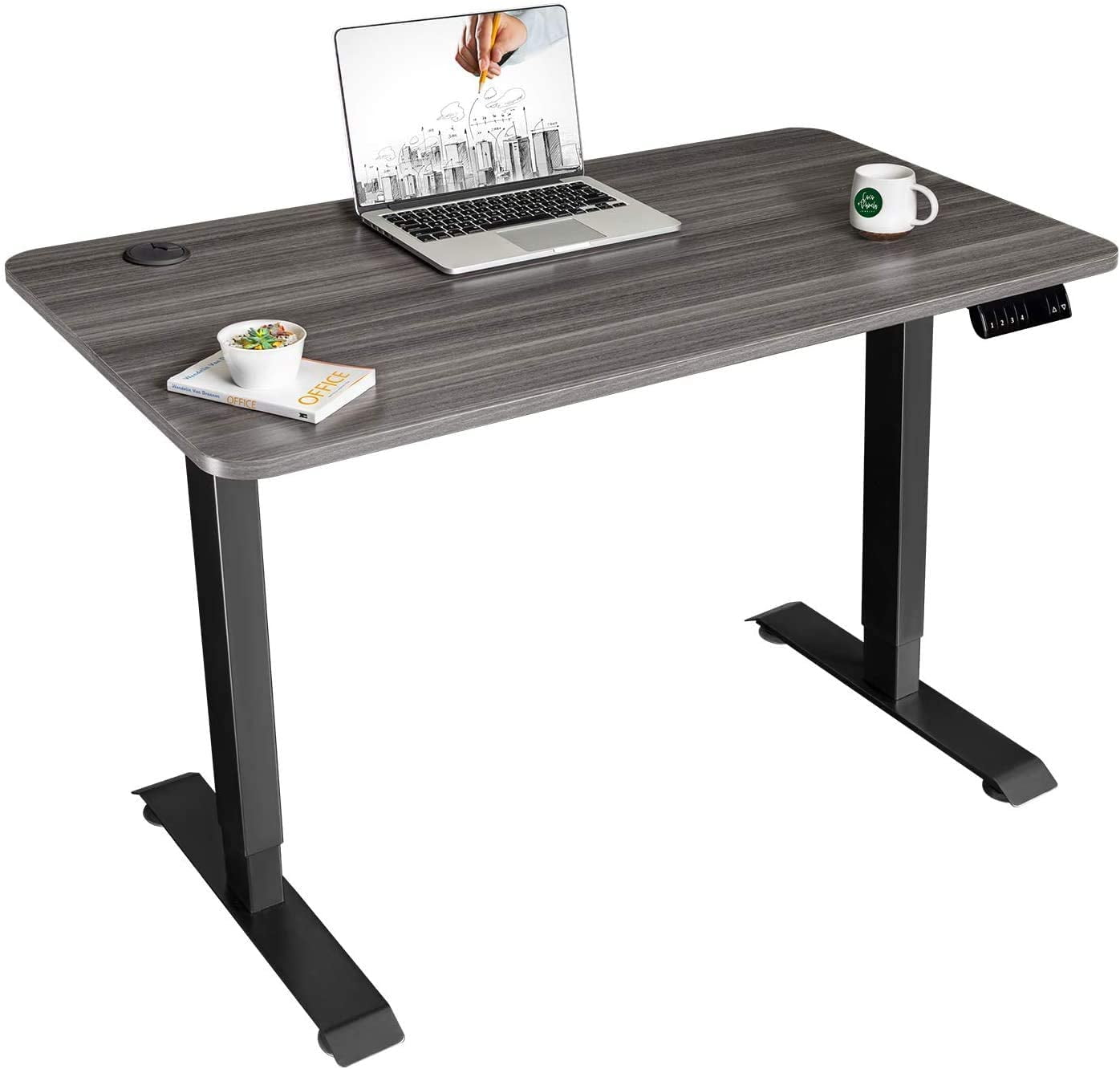
Movement, Breaks, and Sit-Stand Routines: Even perfect ergonomics benefits from regular movement. Alternate between sitting and standing to modulate load on the spine, hips, and feet, and use a supportive anti-fatigue mat when standing. Keep the desk at elbow height in both positions to maintain neutral wrists. Incorporate microbreaks: shoulder rolls, neck nods, ankle pumps, and brief scapular retractions restore circulation and reduce stiffness. Follow eye relief habits such as the 20-20-20 guideline to limit visual strain. Set timers or use a simple routine that prompts posture resets and short walks. Avoid marathon standing sessions; prolonged stillness in any posture creates fatigue. Light mobility drills for hips, hamstrings, and thoracic spine sustain comfort without breaking concentration. If deadlines loom, use active waiting moments during file transfers or rendering to stand, stretch, or breathe. Consistent variability in posture lowers cumulative strain and protects focus, helping you maintain pace without burning out.
Cable Management, Accessories, and Workspace Flow: A clean digital cockpit supports faster work. Use monitor arms to free desk space and dial in precise height and distance. Route wires with cable sleeves, clips, and under-desk trays, keeping power bricks off the floor for airflow and safety. A compact docking station simplifies connections for laptops and peripherals and keeps the surface clutter-free. Define reach zones: essentials (keyboard, mouse, pen, notepad) in primary reach; reference tools and external drives in secondary; archives and storage farther away. Add a footrest if your feet hover, and a slim desk mat to stabilize devices. Maintain device ventilation by allowing air gaps around laptops and hubs, and periodically clear dust to support thermal management. Use a soft task lamp for paperwork, and tame noise with comfortable headsets if your environment is busy. Efficient layout reduces search time and friction, lowers visual noise, and increases flow, making your technology feel lighter and your attention more available.